


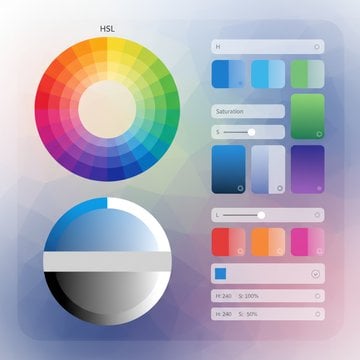
Color Explorer
Explore colors in HEX, RGB, HSL formats with variations and palettes
Enter Color
Accepts: HEX, RGB (0-255 or 0-1), rgb(), hsl(), or color names
Preview & Output
Click swatch to open native picker
Fine-tune Color
Adjust each channel independently
Shades & Tints
Click to use any variation
Color Harmony
Complementary palettes
Explore More Tools
No tools match your search.
What the color explorer does
The color explorer is a browsing interface for RGB and HEX color combinations. It lays out swatches organized by hue and saturation, so you can scan a range of tones without typing any values. Everything renders in your browser, which means no color data travels to a server.
Click any swatch and the tool reveals its HEX and RGB values. Copy buttons put those values on your clipboard in one action. The workflow is built for discovery first: you look, you find a shade you like, then you grab the code.
How browsing and copying work
Each swatch is a rendered sample tied to a specific HEX code and its matching RGB triplet. When you click a swatch, the interface reads those stored values and displays them next to the sample. Nothing is calculated on a remote machine; the values are already paired with the color you see.
To pull colors and use them in your project, follow these steps:
- Open Color Tools and select "RGB & HEX Color Explorer".
- Scan the palettes grouped by hue and saturation.
- Click a swatch to reveal its HEX and RGB values.
- Use the copy button to send the value to your clipboard.
Because the palette is grouped, you can compare neighboring tones side by side and pick the exact step you need.
Why a browsing tool beats guessing
Typing random hex codes to find a shade wastes time. A visual palette shows you the actual color before you commit to a value. That matters when you are matching a brand tone, building a gradient, or checking how two nearby hues read against each other.
Here is where this tool differs from related color utilities:
- The color browser is built for looking through many swatches at once, not for adjusting a single color.
- The Color Picker Palette is for selecting one color visually and reading it in HEX, RGB, and HSL.
- The RGB to HEX Converter is for turning known channel values into a hex string with sliders.
- The HEX to RGB Converter reverses that, taking a hex code and returning its red, green, and blue numbers.
Pick the browser when you do not yet know which color you want. Pick a converter when you already have a value in hand.
When to reach for this tool
The palette browser fits any moment where you need inspiration or a quick reference. Common cases include:
- Building a UI theme and wanting a consistent set of related tones.
- Matching a character palette, such as the bright dora the explorer colors used in kids' design work.
- Choosing chart or graph colors that stay distinct from one another.
- Testing how a background hue pairs with text before writing it into your stylesheet.
Designers who recreate cartoon-inspired schemes often start with dora colors like vivid orange, yellow, and purple, then browse nearby swatches to fill out the rest of the set. The grouped layout makes those adjacent shades quick to spot.
For number-format work alongside your color codes, the site also offers converters like Binary to Hex , which shares the same hexadecimal notation you see in color values.
FAQ
It is a palette browsing interface for RGB and HEX combinations. Swatches are grouped by hue and saturation so you can scan many tones at once. Click any swatch to read its HEX and RGB values, then copy them. The headline for the page is "Explore and browse color palettes," which describes the core purpose: finding a color before you know its code.
Click a swatch to open its details, which show the paired HEX code and RGB triplet. Each value has a copy button that writes the text to your clipboard. Because every swatch is already tied to a stored value, no calculation runs on a server. You paste the code straight into your CSS, design file, or wherever you need it.
The browser presents a grid of preset swatches grouped by hue and saturation, then hands you the HEX and RGB values of whichever one you click. The Color Picker Palette instead lets you drag across a gradient to select one arbitrary color, and it outputs that color in HEX, RGB, and HSL. Use the browser to discover; use the picker to fine-tune a single choice.
Yes. The palette does not label colors by character, but the grouped layout lets you locate the bright oranges, yellows, and purples associated with that scheme. Browse the relevant hue block, click swatches until the shade matches your reference, then copy the HEX code. From there you can jump to neighboring tones to complete the rest of the set.
No. The tool runs entirely in your browser. Rendering the swatches, reading their values, and copying to the clipboard all happen on your device. Nothing about the colors you view or copy leaves the page. This also means the palette keeps working the same way regardless of your connection once the page has loaded.
Each swatch shows two values: a HEX code in the #RRGGBB format and the matching RGB triplet, where red, green, and blue each range from 0 to 255. Both describe the exact same color. If you need HSL or want to select a shade not in the grid, switch to the picker, which reports additional formats for any color you choose.
Swatches are grouped by hue and saturation. Hue is the base color family, such as red or blue, while saturation is how vivid or muted that color reads. Grouping by these two properties places similar tones next to each other. That layout makes it practical to compare adjacent shades and pick the exact step you want without scanning the whole grid.
Use the RGB to HEX Converter . You set the red, green, and blue channels with sliders or number fields, and it returns the hex string with a live preview swatch. The browsing palette is for the reverse situation, when you do not yet have any numbers and want to find a color by looking at it first.
Yes. The HEX code copies in the #RRGGBB form that CSS accepts directly, so you can paste it into a color, background, or border property. The RGB values map to the rgb() function if you prefer that syntax. Both refer to the same color, so choose whichever format your stylesheet already uses for consistency.
The palette browser is available to use on the site without charge. Since all rendering and copying run in your browser, there is no account step or upload before you can view swatches. You can open it, scan the colors, and copy values right away. Other color tools on the site work the same client-side way.
The browser shows a preset grid, so it will not surface every possible color in the full 24-bit range. If you need a shade that is not in the grid, move to the picker and select it directly, or type known channel values into the RGB to HEX Converter. The palette is meant for discovery and quick reference, not exhaustive coverage.